Add supported media links through the preview card, then open the queue tab to choose, reorder, or remove items. These actions depend on your room permissions.
- One shared queue per room
- Select the preview to add
- Check permissions before editing
Add another item
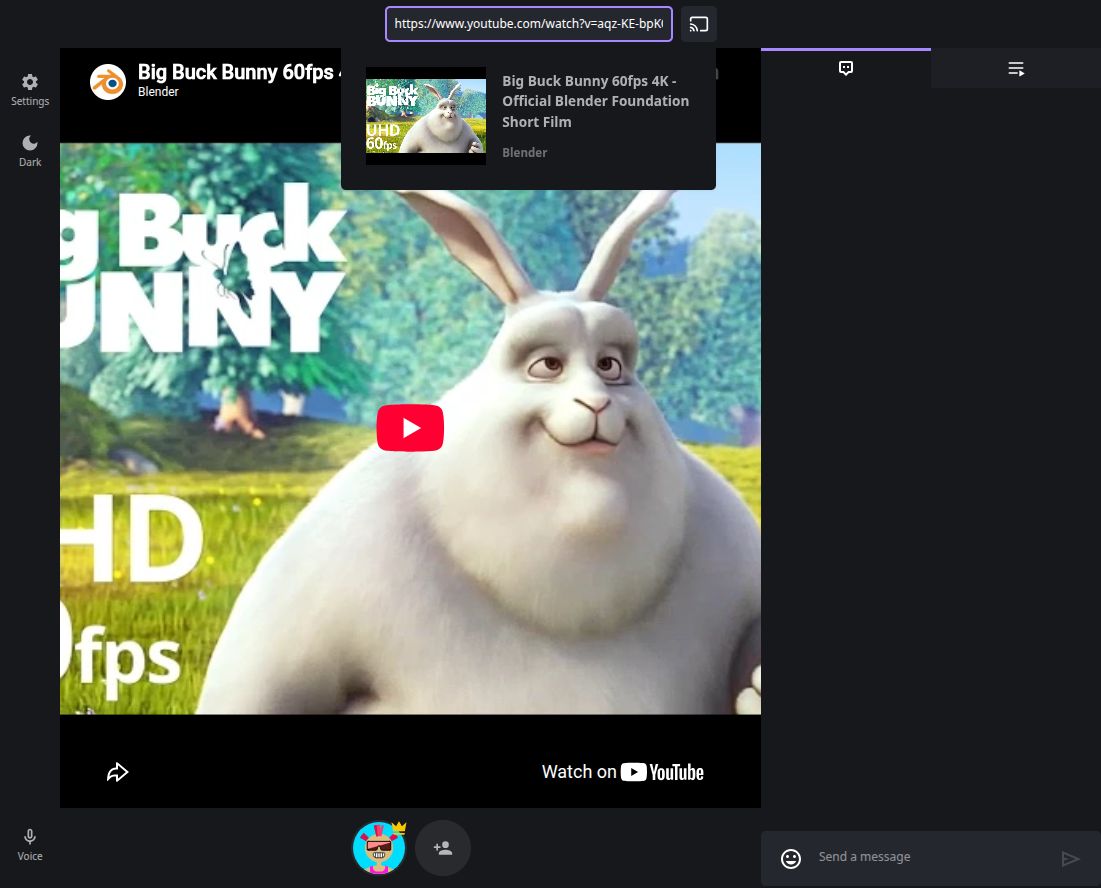
Paste a supported media URL into Enter media URL here above the player. Wait for its preview, check the title, and select the preview card to add it. Repeat for each item you want in the room’s queue.
The first item added to an empty player is loaded for playback. Adding another item while a video is already loaded puts it in the queue without replacing that video. If your browser blocks playback, interact with the player.
Find the shared queue
Select the tab with the list-and-arrow icon beside the chat tab. On a wide screen these tabs sit beside the player; in the compact layout they are below it.
The queue belongs to the room. Changes are shared with participants, so check with your group before changing what is playing. The currently loaded item is highlighted.
Choose an item to play
Select an item in the queue to load it in the room’s player. This starts that item from the beginning rather than resuming its previous position. You need Play/Pause permission for this action.
To keep the current video playing, add your next item and leave it in the queue rather than selecting it.
Change the order
If you have Move permission, each queue item shows a drag handle with two horizontal lines. Drag the handle to the position you want. The revised order is shared with the room.
If the handle is missing, ask the owner to check Move in Settings → Permissions for your role.
Remove an item
If you have Remove permission, open the three-dot More options menu on the item and select Delete. Check its title before deleting it.
Deleting the currently playing item can change playback to another queue item. To restore a removed item, add its source link again through the media field.
If you cannot edit the queue
Add, Remove, Move, and Play/Pause are separate permissions. Being allowed to add a video does not automatically allow you to reorder or delete one. The room owner can review each action in Settings → Permissions.
If the link never produces a usable preview, check that it is a supported media link. For YouTube playback or preview problems, use the troubleshooting guide below.