Open Cliqroom, create a room, paste a public YouTube link, and select its preview. Invite a friend with your room link, then check that the video plays for both of you.
- No Cliqroom account
- No extension to install
- Shared queue and text chat
1. Create a room
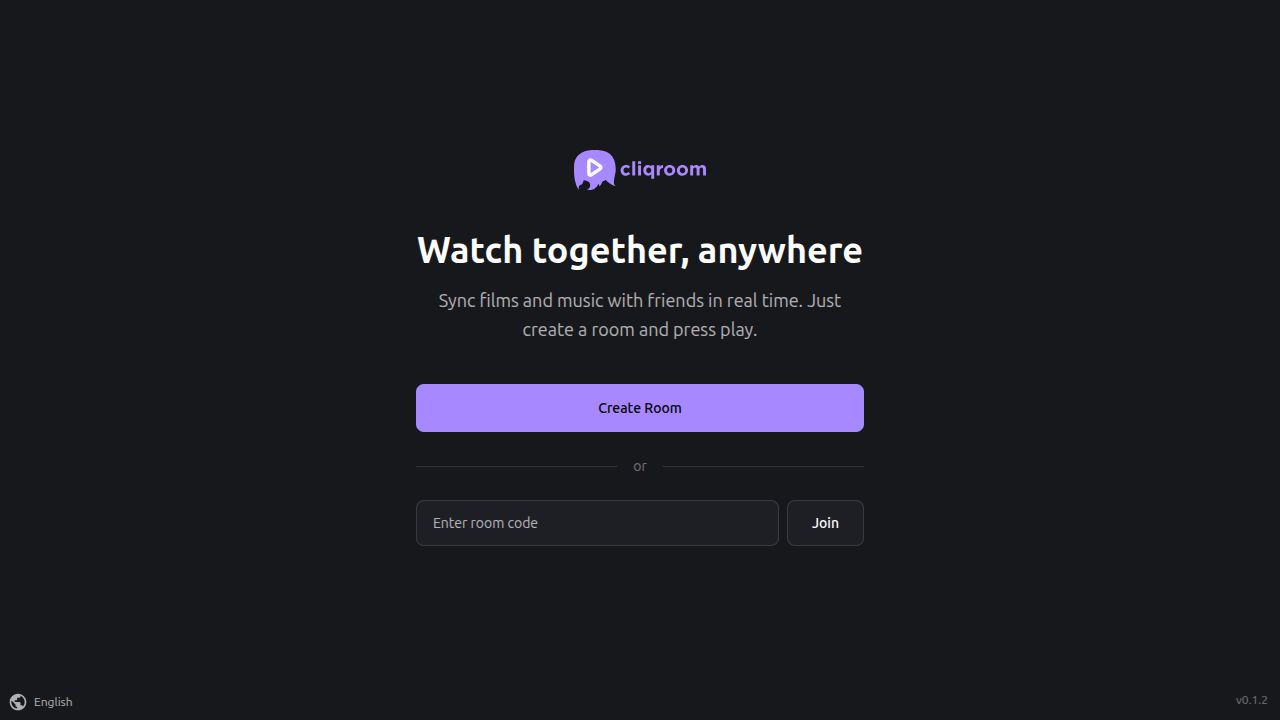
Open the Cliqroom app and select Create Room. A new room opens with a media field at the top and a player below it. Your friends do not need a Cliqroom account.
2. Paste a YouTube link and select the preview
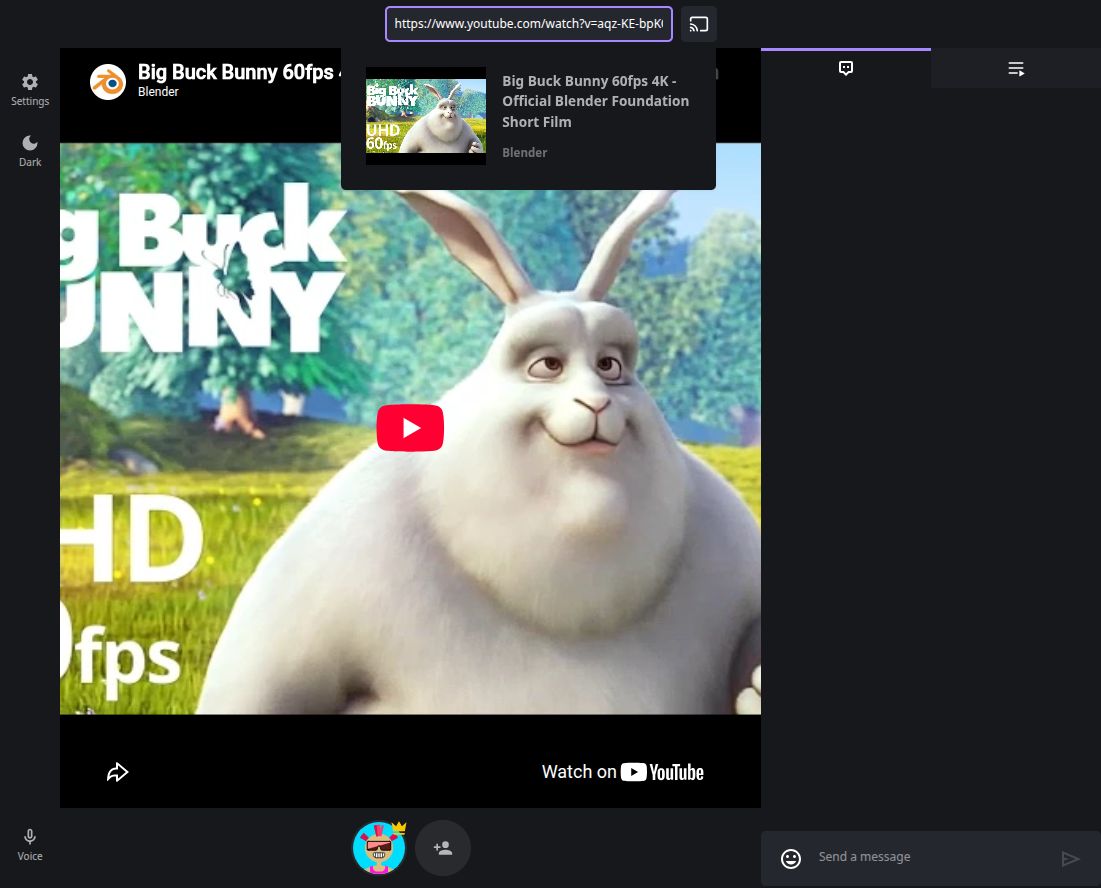
Copy a public YouTube video link and paste it into the Enter media URL here field. Wait for the title and thumbnail to appear, then select the preview card to add the video. Pasting the URL alone does not add it.
The screenshot uses Big Buck Bunny from Blender. Try a public video that you and your friends can already play on YouTube. Restrictions on embedding, age, or location can still affect playback in the room.
3. Invite your friends
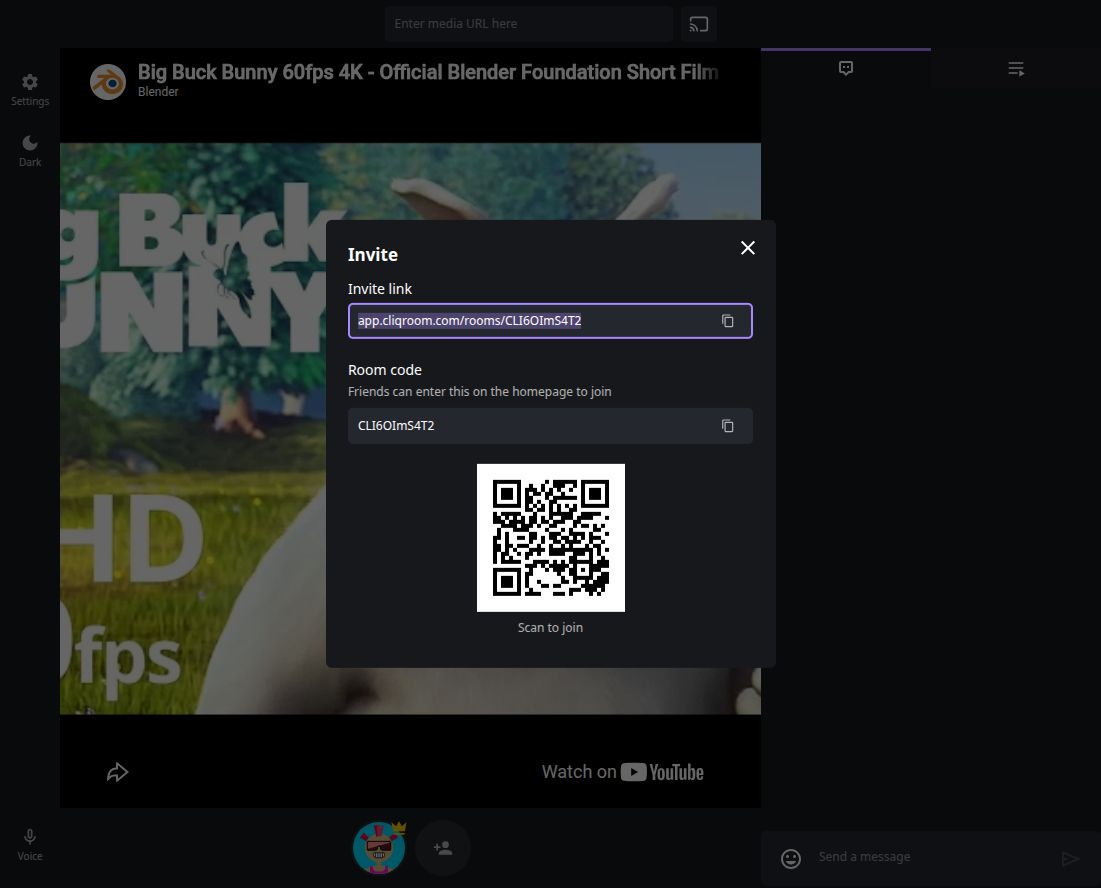
Select the person-with-a-plus button beside the participant avatars, below the player. In the Invite dialog, use the copy button beside Invite link and send that link to your friends.
Friends open the link in their browser. They can also enter your Room code on the Cliqroom start screen or scan the QR code. Use the link from your own room; the screenshot shows a demonstration room.
4. Check playback together
Ask your friend to confirm that the video loads. If it is paused, select Play in the YouTube player. Try pausing and resuming together before adding more videos.
Cliqroom shares playback changes between supported players. Room permissions decide who can control playback or add videos. Buffering, advertisements, and provider behavior can affect timing; synchronized controls do not guarantee identical playback at every moment.
Use the queue tab, marked with a list-and-arrow icon, to check your queued videos. Add another supported link through the media field when you are ready.
Joining from your phone
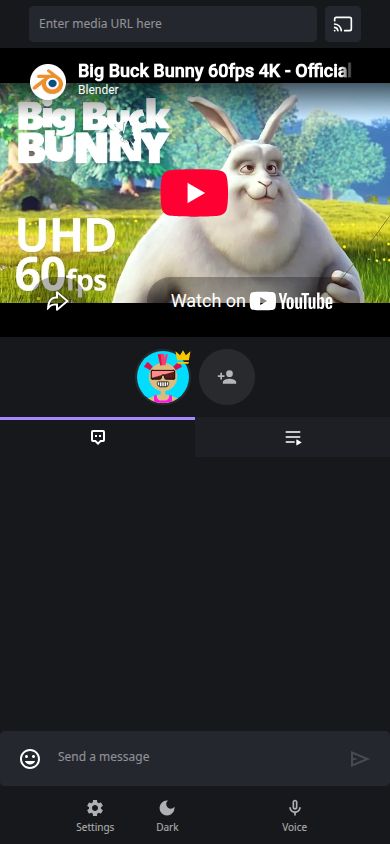
Open the same room link in your phone’s browser. In the compact layout, the media field is above the player, participant avatars sit below it, and chat and queue tabs appear underneath.
If playback does not start, tap Play in the player and check its volume. Browsers can require an interaction before playing media with sound. Keep the room in the foreground while checking playback.
This screenshot shows the room at a mobile viewport width. Source availability and playback still depend on the actual phone and browser your group uses.
If the video will not play
Open the original YouTube link on the affected device. If it does not play there, choose a different video. If it plays on YouTube but not in the room, embedding or access restrictions may be involved.